![foleon_logo_white.png]](https://www.foleon.com/hs-fs/hubfs/foleon_logo_white.png?height=40&name=foleon_logo_white.png)
This article describes how to use the page scroll button. The button functions as a “scroll down for more” indicator at the top of your page.
How to make the page scroll button (in)visible
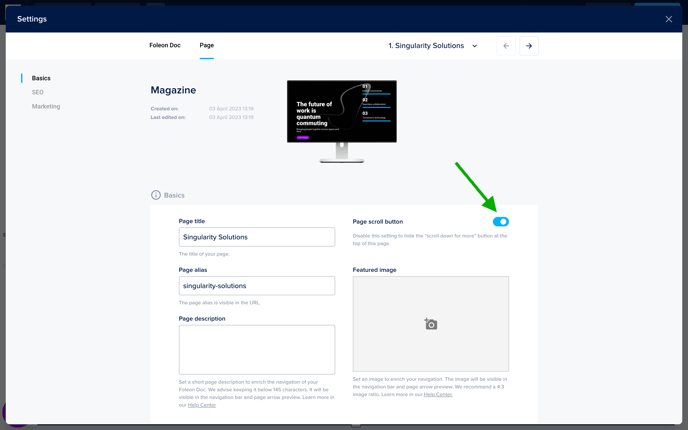
When you are on a page, go to Settings Page Settings. In the Basics tab, you can toggle the page scroll button off or on for that specific page. The page scroll button is on by default when you have multiple blocks on your page.
Styling the page scroll button in the brand settings
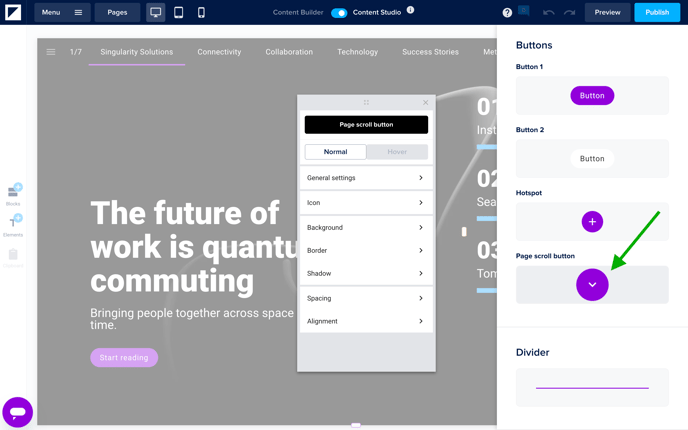
In the brand settings, you can style the page scroll button for all pages where it is active. In the pop-up that appears, you have the standard Foleon styling options such as Background, Border, Shadow, Spacing, and Alignment.
Under Icon, you can choose from one of the available icons. The changes you make here will apply to all pages in your Doc.
💡 You can also upload your own custom image to use as the page scroll button on your page.
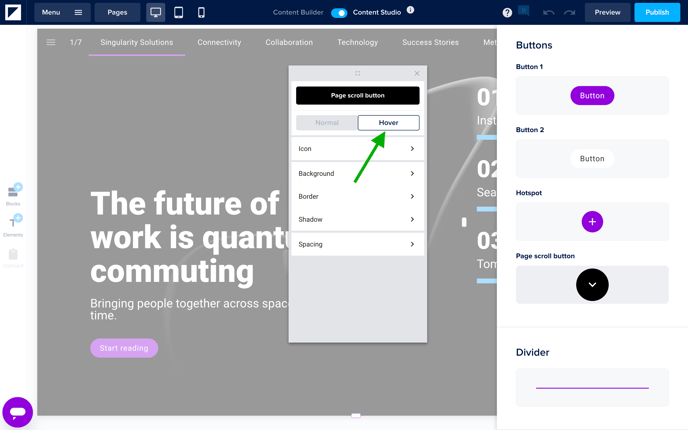
You can choose to alter the design of the page scroll button with a Hover state. The button's hover state is activated when the mouse cursor of the reader is located on the button. Making the hover state a different color can help increase the interactivity of your page.
Styling the page scroll button on your page
You can also change the page scroll button for each individual page.
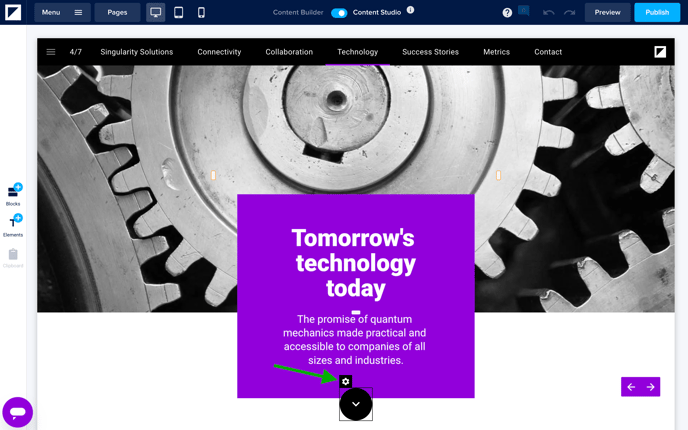
Hover over the page scroll button and click on the cogwheel icon. This will open the settings where you can style the button for a specific page (not for all the pages in your Doc).
Customize the page scroll button
You can upload a custom image to use as the icon for your page scroll button.
To do this, go to the General settings tab and toggle on the Custom scroll button option. You can now upload your image to use as the page scroll button.
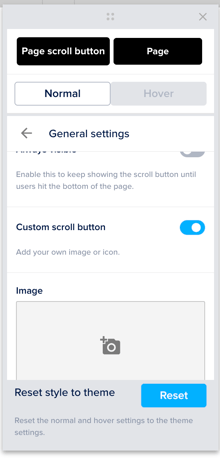
Revert to brand settings
Did you alter the page scroll button for a page, and wish to revert the style settings to their default state from the brand settings? You can click Reset at the bottom of the pop-up to reset the style to the brand settings.
Related articles