![foleon_logo_white.png]](https://www.foleon.com/hs-fs/hubfs/foleon_logo_white.png?height=40&name=foleon_logo_white.png)
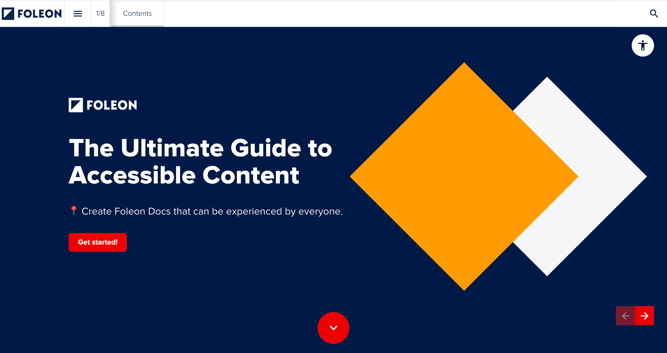
💡 Want to learn about accessibility in an engaging way? Check out The Ultimate Guide to Accessible Content. 📚 Or, follow our Academy course: Designing for Accessibility.
What is web accessibility?
The web should be for everyone.
Web accessibility has quickly become an important consideration in the content creation process. It's more than just a legal requirement — it's a chance for you to improve the experience for your audience in an inclusive way.
- 70% of web content is not accessible.
- 15% of the world's population lives with some form of disability.
What are the WCAG standards?
We’ve committed to continuously improving the accessibility of Foleon Docs by following the Web Content Accessibility Guidelines (WCAG) and considering these guidelines with every new feature we launch. Continue reading here for more information on our certification.
The WCAG Standards are composed of 4 pillars that help to define each web need:
- Perceivable
- Operable
- Understandable
- Robust
As a company, Foleon evaluates the editor based on these four pillars and uses the standards defined within each to ensure our platform can provide our customers with the tools necessary to make their content accessible.
Creating accessible content is a collaborative effort between Foleon and our users. It's our job to make sure that it's possible to create accessible content within our editor, and to provide guidance so users know if they are on the path towards accessibility compliance.
| Our Promise | Our Collaboration |
|
Operable |
Perceivable Ensure enough contrast for readability |
| Robust Cross-browsersupported Usable on different devices |
Understandable Clear and descriptive button text |
1. Place important content higher on the page
Make sure to place important links and interactive elements higher up on your pages. This is good practice because most readers, regardless of their physical or mental ability, expect important content closer to the top of a page.
💡 Easy exercise — Identify important hyperlinks and content elements that you want the reader to see. Then, navigate through your content using the tab key and see how long it takes to reach them. Can you reach them easily, or did you have to press the tab key countless times?
2. Set the right language
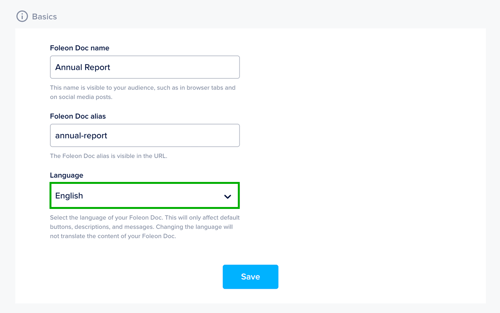
Under Foleon Doc settings, you can set your Doc’s language. We highly recommend setting this as it translates certain default text and ensures screen reader software will correctly interpret the content of your Foleon Doc. We support a wide range of languages.
3. Use headings
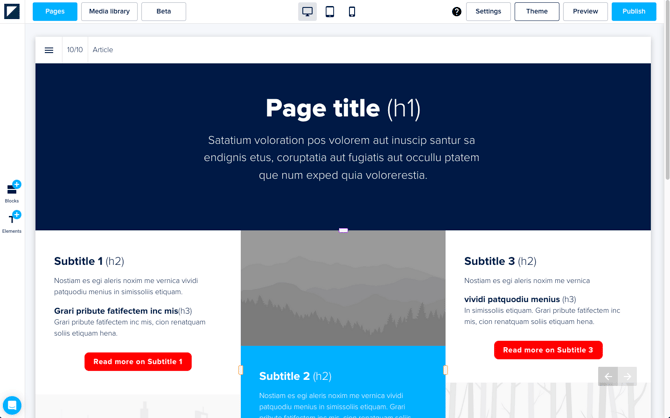
Headings are critical to giving your content structure and hierarchy, which makes it easier for screen readers and search engines to interpret your Foleon Docs.
Follow these rules for your header structure:
- Use header 1 (h1) only once per page, for the main heading (e.g., at the top of a page)
- Use header 2 (h2) for main section headings (e.g., per block)
- Use header 3 (h3) for subheadings (e.g., per column)
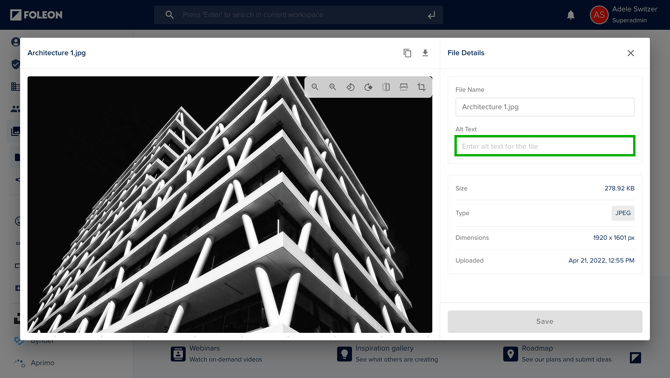
If an image is information-bearing (like a chart, graph, or functional icon), it's important to provide alternative text (alt text). This text is read by screen readers, conveying the image's meaning to visually impaired readers. In the media library, select an image and add alt text in the Image alt field.
5. Improve link clarity
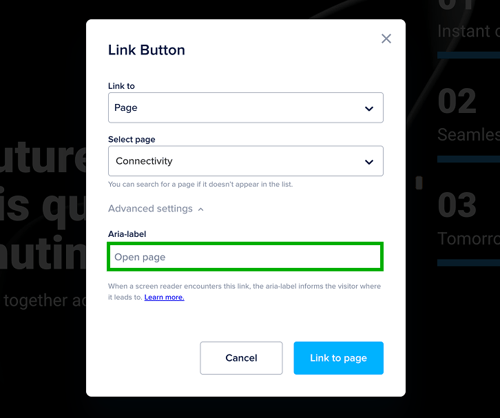
Use custom ARIA labels to further increase screen reader clarity for links and buttons. ARIA labels provide clear, descriptive information about where a button leads, which is especially important if you use minimal text in your links or if the element is an icon-only button. You can edit these labels in the "advanced settings" of the edit link panel.
Accessible Foleon Docs in Action
Explore the examples below to see accessible Foleon Docs in practice:
Accessibility Checklist
The Dos
✅ Use an organized heading structure
✅ Work with enough color contrast
✅ Add alt text to images
✅ Let your audience know where your buttons and links go
✅ Add subtitles to your videos
✅ Add descriptive hover text for hotspots
✅ Make forms accessible
✅ Enable the accessibility toggle
✅ Provide text alternatives for audio fragments
✅ Make data elements accessible
✅ Gating is optimized for accessibility
✅ Block or anchor linking
Use with Caution
⚠️ Background videos
⚠️ Column scroll
⚠️ GIFs
⚠️ Search function
⚠️ Navigation bar icons
⚠️ Page names
⚠️ Page arrow buttons
⚠️ Horizontal page overview
Avoid
❌ Reveal & hide (accordions)
Learn more about each topic 👇
The Dos
✅ Use an organized heading structure
Relying on the header structure set in the Brand Kit is essential for ensuring the proper order of actions for screen readers. As mentioned above, there are four text header levels you can pre-configure: H1, H2, H3, and H4.
✅ Work with enough color contrast
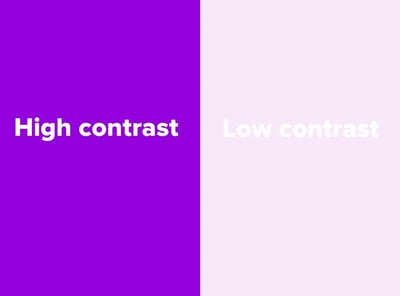
Make sure there is sufficient contrast between the text and background colors. Contrast and color use are vital to accessibility. Enough contrast between the text and its background is necessary to make content readable for people with moderately low vision.
To achieve WCAG 2.2 Level AA conformance, ensure you meet these minimum ratios:
-
4.5:1 Ratio for Normal Text = This is required for all reading text and headings that do not qualify as "Large Text".
-
3:1 Ratio for Large Text = This lower ratio is only allowed for text that is at least 18pt (24px), or 14pt (18.66px) and bold.
-
3:1 Ratio for Non-Text Contrast = This is required for graphics, icons, and essential interface components (such as input field borders and button boundaries).
✅ Add alt text to images
If an image has text or is considered information-bearing, it's important to implement alt text.
If an image is only decorative, then leave the alt text empty. Background images, by default, do not display alt text. Required for all logos.
💡 Easy exercise — Pretend you’re on a phone call with someone and you’re trying to explain what’s on your page and what it is about. If you find yourself describing certain images, you’ll want to add alt text to those ones as they appear to be important.
✅ Let your audience know where your buttons and links go
Make sure that people who can't see understand where a link leads to. Custom aria labels can further increase screen reader clarity and reduce text length on the page. Edit these labels in the "advanced settings" of the edit link panel.
- ❌ Avoid using generic button text like ‘Read More’.
- ✅ Use descriptive button text or ARIA labels that make the destination clear, such as “Read more about button accessibility”.
✅ Add subtitles to your videos
If you’re using non-text content like video, audio, or podcasts, make sure you provide text alternatives so hearing impaired readers can still understand what the content is about.
For video, make sure you always include closed captions (subtitles). Don’t add these to the video file itself. Instead, use the video platform’s built-in captioning tools. You can learn how to add closed captions to YouTube videos (opens in new tab) or learn how to add closed captions to Vimeo videos (opens in new tab).
Enable the Accessible video player toggle in the Foleon Doc navigation settings to let readers use simplified but accessible video player controls that are keyboard and screen-reader-friendly.
✅ Add descriptive hover text for hotspots
Much like buttons, hotspots need to explain where a user will go when clicked. Custom aria-labels can further increase screen reader clarity. Edit these labels in the "advanced settings" of the edit link panel.
✅ Make forms accessible
Forms allow you to capture information from your readers, which is why making them accessible is critical. Otherwise, you might miss out on new leads or subscribers because they were unable to fill out the form.
Use our prefixed setups. These include necessary autocomplete attributes for autofill. Custom fields will not include these vital accessibility attributes.
✅ Enable the accessibility toggle
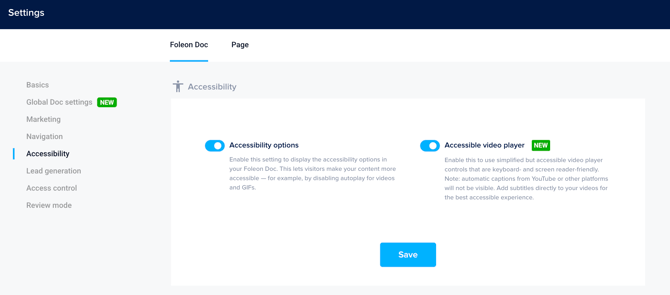
Enable the accessibility toggle in the Foleon Doc navigation settings to let readers pause background videos, GIF images, or data elements motion animations.
To enable this:
- Open your Foleon Doc
- Click Menu > Doc Settings
- Scroll to the section Accessibility
- Toggle on the Accessibility options and/or the Accessible video player
- Click Save
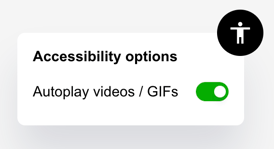
With the Accessibility options enabled, your readers will see an accessibility icon in the top-right corner of your Foleon Doc which they can control.
✅ Provide text alternatives for audio fragments
If you have an audio fragment on a page — e.g. from an embedded Spotify podcast — make sure there is a textual alternative on the page.
✅ Make data elements accessible
To ensure compliance, enable the "accessibility" setting to let users pause animations. Avoid setting speeds faster than 3000ms or animations exceeding 5 seconds.
✅ Gating is optimized for accessibility
Gating is optimized for accessibility in published Foleon Docs.
Note: Keyboard navigation bypasses the gate in Preview Mode.
✅ Block or anchor linking
Block or Anchor linking has been updated to follow the reader's focus, but the feature, released after our last audit, hasn't been formally reviewed.Use with Caution
If you want to create a Foleon Doc that complies with the WCAG, use the following features and functionality at your own risk, as they fall in the grey area of compliance:
⚠️ Background videos
The accessibility setting allows motion to be paused, but we cannot guarantee accessibility with all third-party videos.
The accessibility toggle pauses all motion, including background videos. Since some video providers lack keyboard support, always test your background videos.
⚠️ Column scroll
Although we can access this internal navigation, it doesn't occur in the expected tab order and causes hidden content so it's best to limit or avoid it.
⚠️ GIFs
Although we can pause background videos, GIF files used in backgrounds do not pause with the accessibility toggle enabled. GIFs used as image elements will pause as intended.
⚠️ Search function
The search feature is optimized for screen readers but has not yet been formally reviewed, as it was released after our last audit.
⚠️ Navigation bar icons
"Skip to main content" button allows keyboard users to skip the nav bar, but limiting enabled icons in the nav bar is recommended to reduce the tabbing amount.
⚠️ Page names
"Skip to main content" button allows keyboard users to skip the nav bar, but it's best to limit tabs to avoid page names hiding under the bar's right corner.
⚠️ Page arrow buttons
To limit confusion, disable the Page Navigation Buttons from the Foleon Doc Settings. You can't target this with the keyboard focus in the expected order but you can use keyboard arrow keys to navigate pages.
⚠️ Horizontal page overview
You can display the page overview in a Grid or Horizontally in the Doc settings. Please note that the Horizontal view limits logical focus order for keyboard navigation. We recommend the Classic or Grid view to maintain accessibility standards.
To Avoid
❌ Reveal & hide (accordions)
The Reveal & Hide feature will not pass an accessibility check. It uses invalid HTML roles and creates "ghost" focus points when navigating by keyboard, which can confuse screen reader users.
Additional Resources
To deliver the most value to your entire audience, it's essential to know what it's like to use assistive tools to interact with the web. Being familiar with how they work will also be useful for reviewing your accessible designs.
- Screen readers 👀
Each computer has built-in accessibility tools that can be enabled. Helpful ones to experience for yourself are VoiceOver (Mac) or Narrator (PC). They allow you to feel what it's like to hear a Foleon Doc. Other popular alternatives include NVDA and Jaws. - Use the tab key ⏭️
Navigate without your mouse. Use the tab key on your keyboard to access links and content on web pages or your arrow keys to navigate pages. Mouses aren't for everyone, so consider this experience in your design, as well. - Creative checker tools ✅
There are free resources you can use or download to your browser to help you check for some critical factors related to accessible design. Below are some of the tools we recommend:
- Additional Resources
💡 When you need to be thorough, consulting with a third-party specialist is always a good idea. Accessibility auditors are the true experts.
About our certification ✅
At Foleon, we're deeply committed to providing an inclusive platform. We are actively aligning the Foleon platform with WCAG 2.2 Level AA standards to better support accessible content creation.
To give you the most transparent view, we commissioned an independent audit by Deque Systems. This evaluation was performed in March 2025, with fixed issues validated in June 2025, against the WCAG 2.2 Level AA standard. You can access the full Voluntary Product Accessibility Template (VPAT), also known as the Accessibility Conformance Report (ACR), which conforms to VPAT Version 2.5, by downloading the document here: Foleon Accessibility Conformance Report.
This article and our Foleon Doc guide are evolving assets meant to empower you to create accessible content within our Content Studio editor. Please remember that while Foleon provides tools to support accessible creation, the accessibility of the content created by users (Foleon Docs) is the sole responsibility of the Customer.