
Your platform, your brand! With the new Branded Dashboard, you can align the look and feel of the dashboard with your company identity. Add your logo and apply your brand colors to the top bar, so your teams and stakeholders experience a platform that feels unmistakably yours.
⚠️ This feature is currently in beta and is only available to some Enterprise customers. If you're interested in a Branded Dashboard, contact us here!
In this article
What is the Branded Dashboard?
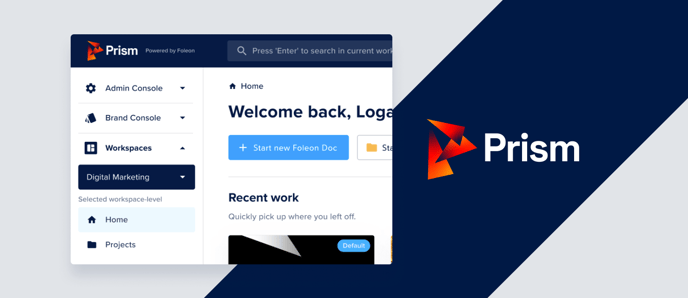
The Branded Dashboard lets you customize the top bar of your Foleon workspace with:
-
Your company logo
-
A custom top bar color
This creates a consistent brand experience for your team when they log in and navigate Foleon. Once set up, your branded elements will appear at the top of your dashboard, replacing Foleon’s default styling. You won’t be able to change these settings yourself, but your CSM can do it for you.
How to request a Branded Dashboard
⚠️ You cannot set up the Branded Dashboard yourself. To request setup, the main administrator or workspace owner should contact your Foleon CSM directly.
To configure your Branded Dashboard, your CSM will need the following:
✅ Your Logo
- This will replace the Foleon logo on the top-left corner of your dashboard.
- Format: PNG
- Maximum (& Recommended) size: 100x50 pixels
- Recommended aspect ratio: 2:1 (horizontal/landscape logos fit best on the top navigation bar
✅ A HEX Color Code (optional)
- This will be used as the background color for the top navigation bar. If you want to keep the Foleon dark blue color (as in Option 1 below), you don't need to provide a HEX code.
- If you'd like a different color, please share the HEX color code (For example:
#FFFFFFfor white)
To request setup:
-
Email your CSM with your logo and HEX color code
-
Let them know which design option you’d like to use (see below)
- Your CSM will apply the branded settings for your account and can provide a preview before finalizing
Design options and recommendations
Below are three options for designing your Branded Dashboard. Please review them and let your CSM know which option you'd like to use when requesting setup.
💡 Choosing one of the recommended styles helps ensure your branding looks sharp while maintaining consistency with the Foleon interface.
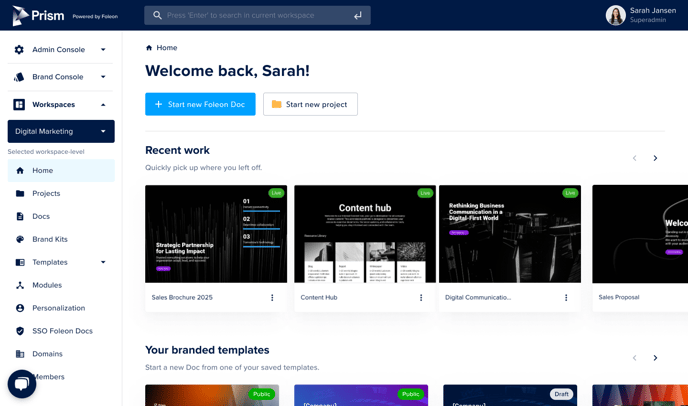
Option 1: White logo on Foleon’s dark blue banner
-
✅ Recommended: this is the most visually consistent with the Foleon platform
-
Keeps the default Foleon dark blue
#001A45as the top bar color -
You provide a white version of your logo
-
Simple and seamless, fully aligned with the rest of the platform
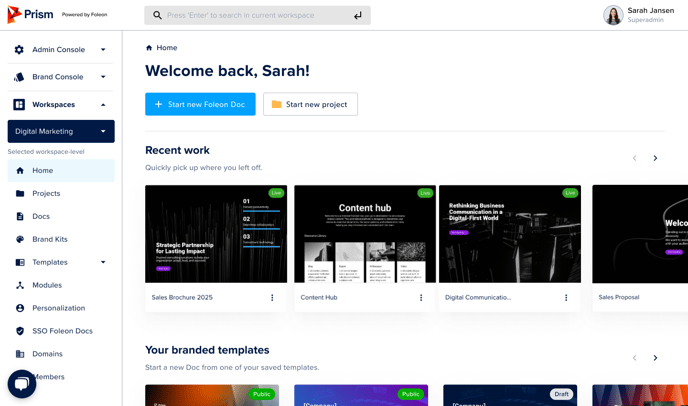
Option 2: Color logo on a white banner
-
✅ Recommended: this option offers strong brand visibility while maintaining a clean look
-
The top bar becomes white
#FFFFFF -
You provide your full-color logo
-
A modern, versatile style that supports most branding needs
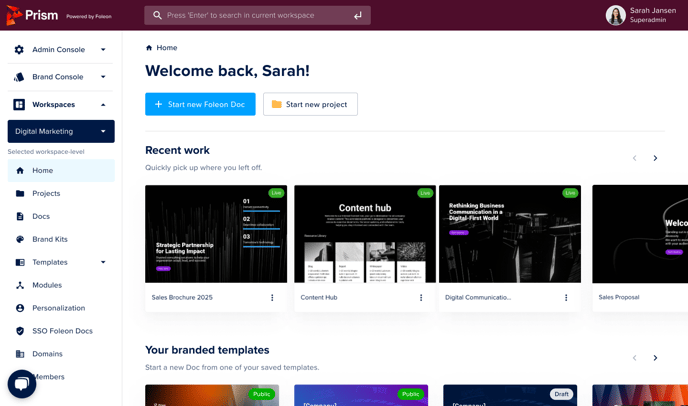
Option 3: Logo on your brand color
-
⚠️ Not always recommended: your custom color may clash with the platform's interface and reduce readability
-
The top bar uses your brand’s primary color (you provide the HEX code)
-
Your (white) logo is placed on top
-
This is an option, but use it with caution. Bold or saturated colors may feel inconsistent with the dashboard and lead to a less polished user experience
Best practices for a great branded dashboard
To help your Branded Dashboard look polished and cohesive, follow these best practices when choosing your logo and colors:
- Align with your internal brand guidelines: This dashboard is seen by your entire team, so make sure it reflects your brand style.
- Use high-contrast combinations: Ensure there’s enough contrast between your logo and the background. A dark color with a white logo or a white background with a color logo generally works best.
- Avoid saturated or neon colors: Bright, saturated colors can be distracting and may clash with the platform’s interface. Stick to mid-tones or neutrals where possible.
- Choose a horizontal logo: Horizontal (landscape) logos fit best in the top navigation bar. Circular or stacked logos may appear too small or cramped.
- Stick to the recommended logo size: Upload a logo that’s exactly or close to 100×50 pixels to avoid resizing or distortion.
- Preview your design (if unsure): Ask your CSM for a quick preview if you’re uncertain which option will look best in your workspace.