
Looking for an alternative to GIFs on your Foleon Docs? Lottie animations are lighter files than GIFs and scale crisply on any screen, making them ideal for adding engaging, interactive motion to your content.
In this article:
Why use Lottie animations?
Lottie files are vector‑based animation files that you can upload to your page. They’re lighter than GIFs, scale crisply on any screen, and play on scroll, hover, click, or autoplay — no buffering, no quality loss.
Unlike GIFs, which are limited to 2MB and can slow down your page, Lottie files are significantly smaller, making your content more interactive and responsive.
Lottie animations help you:
- Create engaging, interactive content
- Add dynamic, visual elements without slowing your page
- Avoid file size limitations that restrict traditional animations
In order to download a Lottie file, you will need an account on Lottie. With a free account, you can customize and download animations from their library.
💡 Explore the Lottie free animations
How to add a Lottie animation to your page
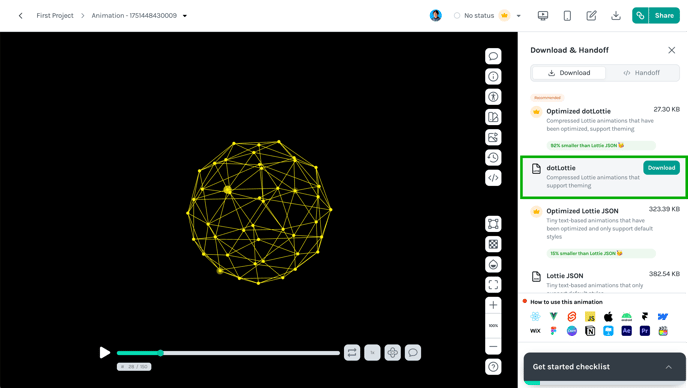
Step 1: Download your Lottie File
Download your animation in the dotLottie format from the Lottie dashboard or editor.
⚠️ When downloading a Lottie file, make sure the file extension is .lottie, not .json.
The maximum file size you can upload to Foleon is 1MB.
Step 2: Add a Lottie element to your page
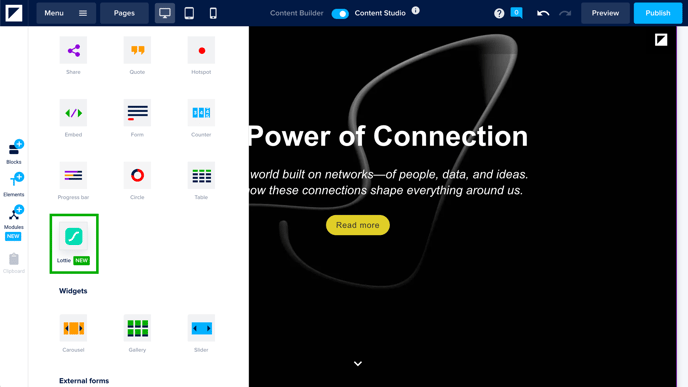
In the Elements tab on the left-hand side of the editor, drag the Lottie element into a column.
💡When working with the Content Builder, you cannot add an element to your page. They're included in block templates for you to replace with your branded images.
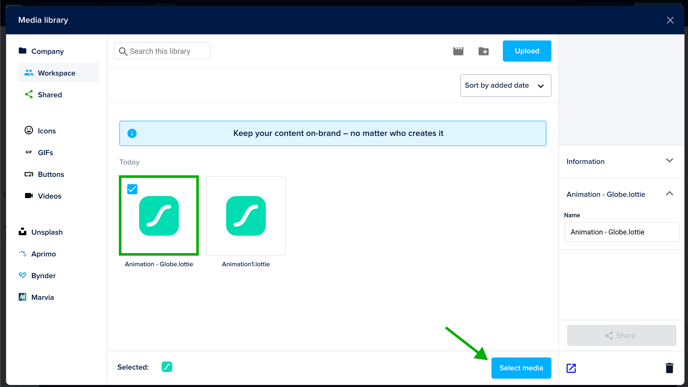
The media library pop-up will appear. Upload your Lottie file or select an existing one. Select your file and click Select media to add the animation to your page.
Step 3: Adjust the settings
By default, the animation will autoplay in a loop. You can customize this in the General Settings.
Click the cogwheel icon ⚙️ on the blue element bar, then click General settings.
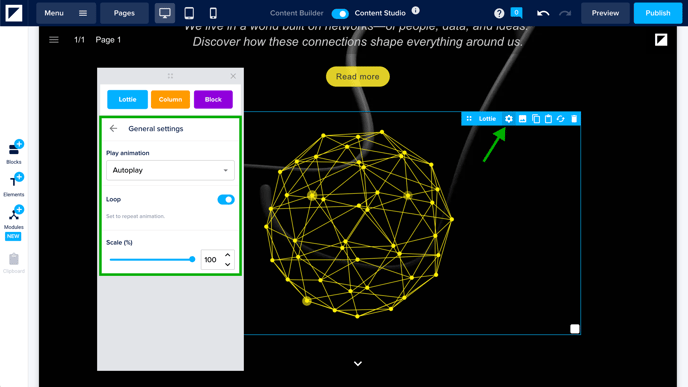
- Play animation - Choose one of the options to determine when your animation should play:
- Autoplay: The animation plays immediately on page load
- On hover: The animation plays when the user hovers over it
- On click: The animation plays when the user clicks on it
- On scroll: The animation plays as the user scrolls the page
- In view: The animation plays when it comes into view
- Loop - Toggle this on to make the animation repeat continuously. Turn it off if you want the animation to play only once.
- Scale - Use the slider to adjust the size of the animation.
Accessibility options
The Lottie element adheres to WCAG accessibility standards. Viewers can stop all autoplaying animations, including Lottie files, by toggling off Autoplay videos/GIFs in the accessibility options. This ensures that animations won't play unexpectedly, regardless of the play animation you've selected.
-Jul-07-2025-01-54-59-5515-PM.png?width=388&height=260&name=image%20(3)-Jul-07-2025-01-54-59-5515-PM.png)